NOTE: This is Part 1 of the Modernizing my Terminal-Based Development Environment series.
UPDATE (March 2026): I’ve since moved away from DevPod and built crib, a smaller devcontainer runner that uses docker exec instead of SSH.
Background
My team uses devcontainers and they’re great for consistency - everyone gets the same Ruby version, Postgres, Chrome for system tests… It Works ™️. New developers run one command and they’re productive.
But there’s a catch: devcontainers basically require VSCode or Cursor (at least the way most people have it set up?). Sure, you can technically use them without an IDE, but the tooling usually assumes you want a GUI editor (even the USER of Docker images are named vscode!). For a “terminal-based developer”, this is awkward.
I spent a few months using Cursor for devcontainers and its “AI stuff”, but it felt wrong. The GUI was painfully slow, I had to relearn shortcuts, and I ended up living in Cursor’s built-in terminal anyway once I started using Claude Code more. I didn’t want the IDE - I just wanted to hop into a terminal inside a container and use my tools. DevPod promised exactly that.
I need to say I’m not a DevPod expert - I’ve only been using it for a few weeks - but it made me go back to my good old terminal days.
What is DevPod?
DevPod is an open-source tool for creating reproducible developer environments using the devcontainer specification. Their tagline says it all: “Codespaces but open-source, client-only and unopinionated” - it treats devcontainers as remote machines you SSH into, with no vendor lock-in. IDEs are opt-in 🫶
The development environments in DevPod are called workspaces:
A workspace in DevPod is a containerized development environment, that holds the source code of a project as well as the dependencies to work on that project, such as a compiler and debugger. The underlying environment where the container runs will be created and managed through a DevPod provider. This allows DevPod to provide a consistent development experience no matter where the container is actually running, which can be a remote machine in a public cloud, localhost or even a Kubernetes cluster.
The workflow goes like:
devpod up- creates or starts your workspace with your desired IDE (or--ide nonein my case)ssh workspace-name.devpod- SSH into the workspace- Use your terminal tools (nvim, zellij, whatever) to hack away and GSD
If you are more of a GUI person, you can also use their desktop app to manage containers / workspaces:
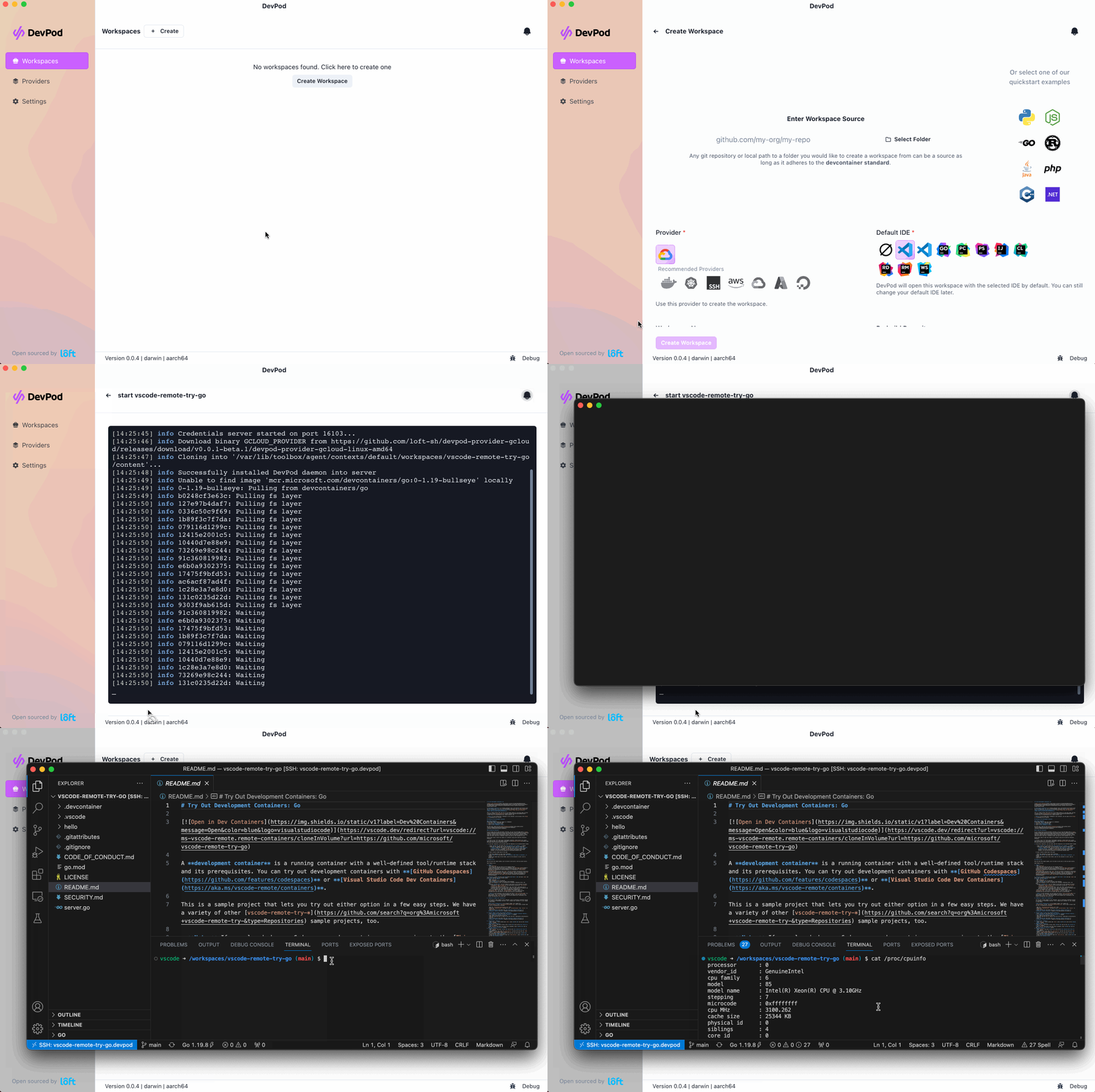
Note: DevPod defaults to OpenVSCode Server (a web-based VSCode) when you don’t specify --ide none. I learned about this while exploring the project - it’s a nice default for GUI users who want to quickly spin up a browser-based IDE.
Why Not the Official Dev Containers CLI?
The official @devcontainers/cli exists, but my understanding is that it’s heavily designed for VSCode integration. For terminal-based development, it’s awkward:
# Official CLI workflow
devcontainer up --workspace-folder .
devcontainer exec --workspace-folder . bash
# Each command needs devcontainer exec...
Issues:
- No SSH support - must wrap every command in
devcontainer exec - No persistent shell - each exec is a new process
- No stop/delete commands - can’t manage workspace lifecycle (marked as TODO per their README for over 3 years)
- Node.js dependency - requires npm/node runtime
DevPod difference:
- Single binary - no runtime dependencies, just download and run
- SSH-based - standard SSH workflow with persistent sessions
- Full lifecycle management -
up,stop,deletecommands (plus--recreateflag) - Terminal multiplexers work naturally - zellij/tmux just work
- Feels like SSH to a remote dev machine, not Docker exec wrapper
Both read the same .devcontainer.json format, but based on my limited experience, DevPod seems to work better with terminal workflow and daily usability.
Installation
Please refer to their official documentation for up to date instructions in case the ones below don’t work for you.
# Install DevPod (Linux)
curl -L -o devpod "https://github.com/loft-sh/devpod/releases/latest/download/devpod-linux-amd64" && \
  sudo install -c -m 0755 devpod /usr/local/bin && \
  rm -f devpod

# macOS users: brew install devpod

# Add and configure Docker provider
devpod provider add docker
devpod provider use docker

# Configure context options like dotfiles (optional)
devpod context set-options -o DOTFILES_URL=https://github.com/yourusername/dotfiles

# Disable telemetry (enabled by default)
devpod context set-options -o TELEMETRY=false
Note on telemetry: DevPod sends usage data by default. Disable it with the command above if you prefer not to share. You can review all context options with devpod context options.
Note on dotfiles: The DOTFILES_URL setting is global - it applies to ALL DevPod workspaces (VSCode has a similar feature). When DevPod starts a workspace, it clones your dotfiles repo and runs the installation script (defaults to install.sh). Your shell config, aliases, and tools can stay consistent across every project. More information here.
Basic Usage
The simplest way to get started is to run devpod up in a directory with a .devcontainer folder:
cd your-project
devpod up .
This creates a workspace, builds the container from your devcontainer config, and opens it (by default in OpenVSCode Server). Once the workspace is running, you can SSH into it:
# DevPod creates an SSH host entry: workspace-name.devpod
ssh your-project.devpod
To skip the IDE entirely (my preference), use --ide none:
devpod up . --ide none
For terminal-based workflows, that’s really all you need. The rest of this post covers how I set this up at work alongside the team’s existing VSCode/Cursor setup, and the customizations that make it work for my daily workflow.
Giving the team an option without disrupting their flows
I set up this “new way of using devcontainers” at work alongside our existing Cursor/VSCode setup. Here’s how:
.devcontainer/           # Team default (Cursor/VSCode) - UNCHANGED
.devcontainer-devpod/    # DevPod setup - OPT-IN
I know that the devcontainer spec allows placing devcontainer.json in subfolders, but VSCode/Cursor will prompt users to select which config to use if multiple exist and might disrupt existing environments. The custom .devcontainer-devpod/ path avoids this entirely - IDEs won’t recognize it and will just continue using .devcontainer/ as usual. “Terminal-based developers” like me can opt into DevPod with a custom wrapper script (shown below) using dpod up.
For those interested in the full devcontainer.json capabilities, check out the complete JSON reference.
The major differences in .devcontainer-devpod/ is the centralized config mounts (../../devpod-data/) configured with compose for nvim/zellij/claude and a custom setup script for terminal tools. Both configs use the same bin/setup from Rails to set up the app, read the same .devcontainer.json format and delegate some of the work to docker compose.
“DevPod my way” ™️
Now that you understand the dual-config approach, let me walk through the specific customizations I made to make DevPod feel like a natural part of my terminal-based workflow.
Workspace “Stickiness”
Providing all of the devpod parameters for every interaction gets old fast, to me it’d mean something like this to bring a workspace up for my project at work:
devpod up . \
          --id my-app \
          --ide none \
          --devcontainer-path .devcontainer-devpod/devcontainer.json
DevPod can take a workspace name directly (via devpod up workspace-name) once it’s created, but you still need those flags on first run. To make my life easier I created a wrapper script (bin/dpod) that provides the workspace ID and devcontainer path as defaults, avoiding repetitive typing.
Instead of the command above, I just do:
bin/dpod up
Click to see the complete wrapper script
#!/bin/bash
# bin/dpod - DevPod wrapper with project defaults

set -e

# Prevent execution inside containers
if [ -f /.dockerenv ] || [ -f /run/.containerenv ] || [ -n "$DEVCONTAINER" ]; then
  echo "Error: bin/dpod must be run on the host machine, not inside a container"
  exit 1
fi

# Project defaults
WORKSPACE_ID="${DEVPOD_WORKSPACE_ID:-my-app}"
DEVCONTAINER_PATH="${DEVCONTAINER_PATH:-.devcontainer-devpod/devcontainer.json}"
IDE="${DEVPOD_IDE:-none}"

# Show usage if no arguments
if [ $# -eq 0 ]; then
  echo "Usage: bin/dpod <command> [flags]"
  echo ""
  echo "Commands:"
  echo "  up        Start/create workspace"
  echo "  stop      Stop workspace"
  echo "  recreate  Recreate workspace container"
  echo "  delete    Delete workspace"
  echo "  ssh       SSH into workspace"
  echo "  status    Show workspace status"
  echo ""
  echo "Environment variables:"
  echo "  DEVPOD_WORKSPACE_ID  Override workspace ID (default: my-app)"
  echo "  DEVPOD_IDE           Override IDE setting (default: none)"
  echo "  DEVCONTAINER_PATH    Override devcontainer path (default: .devcontainer-devpod/devcontainer.json)"
  exit 0
fi

COMMAND="$1"
shift

case "$COMMAND" in
  up)
    if devpod list 2>/dev/null | grep -q "^$WORKSPACE_ID"; then
      echo "→ Starting workspace '$WORKSPACE_ID'..."
      devpod up --devcontainer-path "$DEVCONTAINER_PATH" "$WORKSPACE_ID" "$@"
    else
      echo "→ Creating workspace '$WORKSPACE_ID'..."
      devpod up . --devcontainer-path "$DEVCONTAINER_PATH" --id "$WORKSPACE_ID" --ide "$IDE" "$@"
    fi
    ;;

  recreate)
    echo "→ Recreating workspace '$WORKSPACE_ID'..."
    devpod up "$WORKSPACE_ID" --devcontainer-path "$DEVCONTAINER_PATH" --recreate "$@"
    ;;

  ssh)
    echo "→ SSH into workspace '$WORKSPACE_ID'..."
    ssh "$WORKSPACE_ID.devpod" "$@"
    ;;

  stop)
    echo "→ Stopping workspace '$WORKSPACE_ID'..."
    devpod stop "$WORKSPACE_ID" "$@"
    ;;

  delete)
    echo "→ Deleting workspace '$WORKSPACE_ID'..."
    devpod delete "$WORKSPACE_ID" "$@"
    ;;

  status)
    echo "→ Workspace status for '$WORKSPACE_ID':"
    devpod list | grep -E "^NAME|^$WORKSPACE_ID" || echo "Workspace not found"
    ;;

  *)
    echo "Unknown command: $COMMAND"
    echo "Run 'bin/dpod' for available commands"
    exit 1
    ;;
esac
The wrapper makes DevPod easier to use daily: bin/dpod up creates or starts your workspace, bin/dpod ssh gets you in, and bin/dpod recreate rebuilds from scratch - all without typing the same arguments repeatedly.
Config Persistence for tools installed inside the container
It’s very unlikely you’ll create containers once and never recreate them. By using standard Docker Compose volume mounts, we can make configs persistent across container recreations.
Note: You can also configure mounts directly in devcontainer.json using the mounts property, but I prefer keeping them in the compose file since my setup already uses compose for services (Postgres, Redis, etc.). Both approaches work - choose what fits your project structure.
# .devcontainer-devpod/compose.yaml
services:
  rails-app:
    volumes:
      - ../..:/workspaces:cached
      - ../../devpod-data/ssh:/home/vscode/.ssh
      - ../../devpod-data/nvim:/home/vscode/.config/nvim
      - ../../devpod-data/zellij:/home/vscode/.config/zellij
      - ../../devpod-data/claude:/home/vscode/.claude
Your editor / zellij / claude configs live outside the container in a folder that is mounted on your machine. That way you can destroy and recreate the workspace as many times as you want and your configs stay intact.
Permission gotcha: If Docker Compose creates these directories (because they don’t exist yet), they’ll be owned by root. Your setup script should include a chown to fix permissions:
# In .devcontainer-devpod/setup.sh
sudo chown -R vscode:vscode ~/.config/nvim ~/.config/zellij ~/.claude
Claude Code config persistence: Claude Code stores credentials in ~/.claude/.credentials.json (which is already persistent via the mount), but expects config files at ~/.claude.json and ~/.mcp.json in your home directory. Those paths aren’t persistent across container recreations. The workaround is to store the actual config files in the mounted ~/.claude/ directory and symlink to them:
# In .devcontainer-devpod/setup.sh

# Create config files in persisted location if they don't exist
if [ ! -f ~/.claude/.claude.json ]; then
  echo "{}" > ~/.claude/.claude.json
fi
if [ ! -f ~/.claude/.mcp.json ]; then
  echo "{}" > ~/.claude/.mcp.json
fi

# Symlink from expected locations to persisted files
if [ ! -e ~/.claude.json ]; then
  ln -s ~/.claude/.claude.json ~/.claude.json
fi
if [ ! -e ~/.mcp.json ]; then
  ln -s ~/.claude/.mcp.json ~/.mcp.json
fi
This way, your Claude Code authentication (already in ~/.claude/.credentials.json) and config files both survive container recreation.
Speeding Up Bundle Install
By default, bundle install checks rubygems.org even when gems are already in vendor/cache. Since the workspace mount includes vendor/cache from your host, you can skip network calls entirely with the --local flag.
In bin/setup, replace:
system('bundle check') || system!('bundle install')
With a local-first approach that falls back to network when needed:
unless system('bundle check')
  # Try local first (fast for rebuilds), fall back to network if missing gems
  system('bundle install --local') || system!('bundle install')
  system!('bundle cache')
end
How it works:
- On rebuild: Uses
--local, installs fromvendor/cachewithout hitting rubygems.org - After Gemfile changes: Falls back to network install, then updates
vendor/cache - No manual intervention: The script handles both cases automatically
This makes container recreations significantly faster since bundler doesn’t need to check gem versions against the remote registry.
Platform compatibility note: This approach works well for devcontainer workflows because bundle install runs inside the container (Linux), not on your host. Even if team members use different host platforms (macOS/Linux), vendor/cache gets populated with Linux-compatible gems since bundler runs in the container. Everyone using the same devcontainer means everyone gets the same platform-specific gems.
Note: node_modules already persist automatically since they’re in your workspace directory (./node_modules), which is already mounted.
The Setup Script
In addition to setting up the app with bin/setup as part of container creation, I created a setup.sh script that runs via postCreateCommand before the app setup:
// in .devcontainer-devpod/devcontainer.json
{
  "name": "my-app",
  "postCreateCommand": ".devcontainer-devpod/setup.sh && bin/setup"
}
The script is idempotent and handles:
- Neovim v0.11.4 installation
- LazyVim with project-specific plugins
- Zellij terminal multiplexer
- Oh My Zsh with custom prompt (Docker emoji prefix)
- Git configuration (opt-in commit signing + hack mentioned below)
ripgrepandfdfor nvim plugins- Claude Code CLI
Preventing Unnecessary Container Rebuilds
Update 2025-11-14: After running this setup for a few days, I noticed containers were rebuilding even when nothing changed. Running bin/dpod stop followed by bin/dpod up would trigger a full rebuild of all container features - wasting 2-3 minutes each time.
The Problem
The issue was the Docker build context. In my initial setup, the compose file used the project root as the build context:
# .devcontainer-devpod/compose.yaml (BEFORE)
services:
  rails-app:
    build:
      context: ..                              # Project root
      dockerfile: .devcontainer-devpod/Dockerfile
This meant Docker included the entire project directory in the build context (all your source code, config files, etc.). Any time files changed in directories like .claude/, .ruby-lsp/, or even uncommitted changes to setup scripts, Docker would see a different context and invalidate the cache.
The build output showed the problem clearly:
#11 [dev_containers_target_stage 1/8] COPY ./.devpod-internal/ /tmp/build-features/
#11 DONE 0.0s    # <- NOT CACHED! This invalidates all subsequent layers
The Solution
The fix is to use .devcontainer-devpod/ as the build context instead of the project root. Looking at the Dockerfile, it only needs build.sh during the build:
# .devcontainer-devpod/Dockerfile
FROM ghcr.io/rails/devcontainer/images/ruby:3.4.7
COPY build.sh /tmp/build.sh          # Only copies build.sh
RUN /tmp/build.sh && sudo rm /tmp/build.sh
The project source code is mounted at runtime via volumes, not needed during the build. So we can change the build context:
# .devcontainer-devpod/compose.yaml (AFTER)
services:
  rails-app:
    build:
      context: .                       # Just .devcontainer-devpod/ directory
      dockerfile: Dockerfile
    volumes:
      - ../..:/workspaces:cached      # Source code mounted at runtime
Extra Safety with .dockerignore
For extra safety, I added a .dockerignore to exclude files that aren’t needed during the build:
# .devcontainer-devpod/.dockerignore
# Only include what's needed for the image build
# The Dockerfile only copies build.sh

# Ignore compose files (used by docker-compose, not during build)
compose.yaml
compose.override.yaml
compose.override.yaml.example

# Ignore devcontainer config (used by DevPod, not during build)
devcontainer.json

# Ignore setup script (runs in postCreateCommand after build)
setup.sh
Now the build context only includes Dockerfile and build.sh - nothing else. Changes to compose files, setup scripts, or devcontainer.json won’t invalidate Docker’s build cache.
The Results
After this change, running bin/dpod recreate now shows everything cached:
#12 [dev_containers_target_stage 1/8] COPY ./.devpod-internal/ /tmp/build-features/
#12 CACHED    # <- Now cached!

#13 [dev_containers_target_stage 2/8] RUN chmod -R 0755 /tmp/build-features && ls /tmp/build-features
#13 CACHED

#14 [dev_containers_target_stage 3/8] RUN echo "_CONTAINER_USER_HOME=..."
#14 CACHED

# ... all subsequent layers CACHED
Rebuilds went from 2-3 minutes down to seconds. HUGE win. The container only rebuilds when you actually change files in .devcontainer-devpod/ that affect the build - which is exactly what you want.
Git Signing: The DevPod Gotcha
Not everyone cares about signing git commits, but if you do, you’ll hit a frustrating DevPod issue. When attempting to sign commits using SSH keys inside a DevPod container, you’ll stumble upon errors that killed me for hours:
error Error receiving git ssh signature: %!w(*status.Error=...)
Or:
unknown shorthand flag: 'U' in -U
The problem: DevPod automatically configures git to use a custom SSH signing wrapper by setting gpg.ssh.program=devpod-ssh-signature. This wrapper is meant to bridge SSH signing between host and container, but it’s broken - it doesn’t support the -U flag that modern git versions use for SSH signing (tracked in issue #1803).
Why it’s a PITA:
- DevPod keeps RE-ADDING this configuration even after you manually remove it
- Simply running
git config --global --unset gpg.ssh.programonce only provides a temporary fix - DevPod doesn’t sync
commit.gpgsignfrom your host - even if signing is enabled on your host, it won’t be in the container
The Solution
The fix requires persistence: remove the broken wrapper on every shell startup.
1. Add to your setup script (.devcontainer-devpod/setup.sh):
# Remove DevPod's broken SSH signing wrapper (issue #1803)
# This wrapper doesn't support the -U flag that modern git uses
if git config --global --get gpg.ssh.program &>/dev/null; then
  git config --global --unset gpg.ssh.program
  echo "✓ Removed DevPod's broken gpg.ssh.program wrapper"
fi

# Add persistent removal to shell rc files (DevPod re-adds it on SSH connect)
if ! grep -q "gpg.ssh.program" ~/.zshrc 2>/dev/null; then
  echo 'git config --global --unset gpg.ssh.program 2>/dev/null || true' >> ~/.zshrc
fi
if ! grep -q "gpg.ssh.program" ~/.bashrc 2>/dev/null; then
  echo 'git config --global --unset gpg.ssh.program 2>/dev/null || true' >> ~/.bashrc
fi

# Configure SSH signing (DevPod syncs user.signingkey but NOT commit.gpgsign)
if git config --global user.signingkey &>/dev/null; then
  # Ensure SSH format is set
  if [ "$(git config --global --get gpg.format)" != "ssh" ]; then
    git config --global gpg.format ssh
    echo "✓ Git GPG format set to SSH"
  fi

  # Enable commit signing (NOT synced from host!)
  if ! git config --global commit.gpgsign &>/dev/null; then
    git config --global commit.gpgsign true
    echo "✓ Git commit signing enabled"
  fi
fi
2. Mount your SSH directory (.devcontainer-devpod/compose.yaml):
volumes:
  # Mount .ssh directory for git signing and GitHub access
  - ../../devpod-data/ssh:/home/vscode/.ssh
Alternative - mount only the public key:
If you prefer minimal mounting, you can mount just the public key instead:
volumes:
  # Mount only public SSH key for git signing (agent forwarding handles private key)
  - ~/.ssh/id_ed25519-sign.pub:/home/vscode/.ssh/id_ed25519-sign.pub:ro
Why the public key approach works: DevPod’s ForwardAgent yes configuration forwards your SSH agent socket into the container. Git only needs the public key to identify which key to use - the private key is accessed securely through the forwarded SSH agent. This is more secure since the private key never enters the container.
How It Works
With this setup, the signing flow is:
- Git needs to sign a commit
- Git reads
~/.ssh/id_ed25519-sign.pubto know which key to use - Git invokes
ssh-keygen -Y signdirectly (no broken wrapper) - ssh-keygen contacts the SSH agent via
$SSH_AUTH_SOCK(forwarded by DevPod) - SSH agent on host signs the commit using the private key
- Signature returned to git in the container
Verification
Check if signing is working:
# Check the broken wrapper is NOT set
git config --global --get gpg.ssh.program
# Should output nothing or "not found"

# Check SSH signing is configured
git config --global --get gpg.format          # should be: ssh
git config --global --get user.signingkey     # should be: ~/.ssh/id_ed25519-sign.pub
git config --global --get commit.gpgsign      # should be: true

# Verify HEAD commit is signed
git cat-file commit HEAD
# Look for: "gpgsig -----BEGIN SSH SIGNATURE-----"
Alternative: If you don’t need signed commits from inside the container, simply disable signing: git config --global commit.gpgsign false.
Note on git config sync: Much like VSCode Remote Containers, DevPod automatically syncs your git configuration from the host into the container (including user.name, user.email, user.signingkey, etc.). This is convenient but explains why the broken wrapper appears - DevPod’s trying to be helpful by configuring signing, but their implementation is broken. The workaround above removes their wrapper while keeping your signing config intact.
Port Forwarding: Choose Your Approach
While setting up another project with DevPod, I noticed these errors during devpod up:
info Error port forwarding 3000: listen tcp 127.0.0.1:3000: bind: address already in use
info Error port forwarding 35729: accept tcp 127.0.0.1:35729: use of closed network connection
The same errors appeared when running bin/dpod ssh. Things worked fine - the app was accessible on port 3000 - but the errors were noisy and confusing.
The Problem
The conflict came from defining ports in two places:
- Docker Compose (
compose.yaml): Native Docker port mapping (3000:3000) - devcontainer.json: SSH-based port forwarding (
"forwardPorts": [3000])
These are different mechanisms:
portsin compose.yaml: Docker’s native port mapping. Works immediately when the container starts, no SSH session required.forwardPortsin devcontainer.json: Part of the devcontainer spec. DevPod implements this using SSH port forwarding (likessh -L 3000:localhost:3000), which requires an active SSH connection.
When both are configured, Docker binds the port first. Then when DevPod establishes the SSH connection, it tries to forward the same port and gets “address already in use” errors.
The Solution
For terminal-based workflows: Remove forwardPorts from devcontainer.json and rely only on Docker Compose’s ports mapping.
# .devcontainer-devpod/compose.yaml
services:
  rails-app:
    ports:
      - "3000:3000"  # Native Docker port mapping
// .devcontainer-devpod/devcontainer.json
{
  "name": "my-app",
  // No forwardPorts needed for terminal workflow
}
Why this works for terminal users: You’re not maintaining a persistent SSH session - you SSH in when needed, do your work, and disconnect. Docker’s native port mapping is active regardless of SSH connections, making it more suitable for this workflow.
Why VSCode users do it differently: My understanding is that IDEs typically use forwardPorts instead of compose ports because they maintain persistent SSH connections and need this for remote scenarios (like Codespaces) where Docker’s native port mapping won’t work from your local browser.
Related DevPod issues: The errors are somewhat harmless but noisy - tracked in #793. The need for active SSH sessions with forwardPorts is explained in #871.
Summing up
The main thing here is that DevPod is letting me regain control over my development environment and letting me get back to neovim. I’m already used to the SSH workflow using terminal multiplexers and am pretty comfortable with that.
The downside is that everything requires explicit configuration and things are “less magical”. But after a week of fighting with git signing, rebuilds, and port forwarding, I got it working. I personally see the manual config as an opportunity to understand what’s actually happening under the hood.
I’m now using it daily at work.
Would I recommend it?
- For “terminal-based developers”: Absolutely try it. You’ll appreciate the SSH-based workflow, especially if you, like me, recently switched to a
click based“more modern IDE” for whatever reason. - For happy VSCode/Cursor users: Probably not worth switching. The IDE integration works well for devcontainers.
Resources
Official Documentation:
- DevPod Documentation
- DevContainer Specification
- DevContainer JSON Reference - Complete spec for devcontainer.json
- DevPod Issue #1803 - Git SSH signing bug tracker
Related Reading:
- Things I Learned About DevPod After Obsessing Over it for a Week - Another developer’s week-long DevPod exploration with practical lessons learned
- Devcontainers without VSCode (Ruby on Rails) - Rails community’s recent devcontainer CLI scripts (January 2025)